 Utilify Zone
Creating an invoice is more than entering a price and sending a document. A useful invoice should clearly identify the transaction, explain what the customer is being charged for, show the amount due, and state when payment is expected. Official guidance from GOV.UK’s invoice requirements and EU VAT invoicing rules both emphasize the importance of clear invoice identification and transaction details, although exact requirements depend on the jurisdiction and tax status.
This guide explains how to make an invoice online free, what information belongs on it, how to handle services and products, and which common mistakes to avoid before sending the final document.
The Problem with Manual Invoicing: Why Poorly Prepared Bills Cause Problems
Creating every invoice manually in a word processor or spreadsheet can work for occasional billing, but repeated manual editing introduces more opportunities for inconsistent formatting, calculation mistakes, missing information, and outdated templates.
The Hidden Costs of Word and Excel Templates
A manually maintained template requires you to update customer information, invoice numbers, dates, line items, quantities, rates, taxes, totals, and payment information each time you bill someone. The more fields you change, the more important it becomes to check the finished document before sending it.
Spreadsheets can calculate totals, but they still depend on the structure and formulas you create. A document template can look professional while containing an incorrect total or an outdated payment instruction.
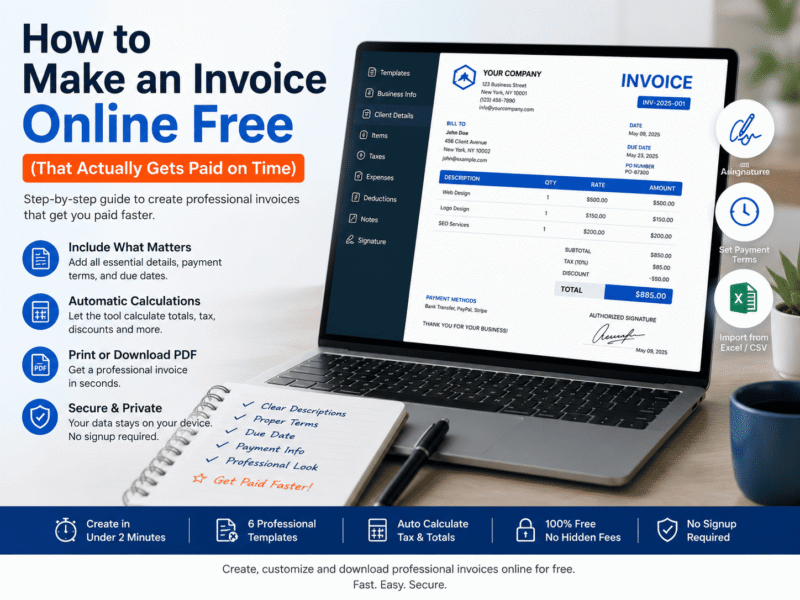
A structured invoice generator reduces some of this repetitive work. The attached tool code supports separate invoice fields for descriptions, quantities, prices, line totals, subtotal, tax, expenses, deductions, and the final total.
It also supports importing invoice items from CSV or Excel files when the data contains description, quantity, and price columns.
For business recordkeeping, the IRS recordkeeping guidance recommends maintaining records that clearly show business income and expenses and identifies invoices as supporting business documents.
Why Unprofessional Invoices Create Friction
An invoice is a business document that the customer may need to review, approve, forward to accounts payable, or retain for their own records. Missing information or unclear descriptions can create questions before the customer can process the charge.
The UK’s Small Business Commissioner’s guidance on getting invoices right recommends including information such as the invoice date, invoice number, work completed, total fee, due date, agreed payment terms, and relevant payment details.
A clean layout does not guarantee faster payment, but it removes avoidable ambiguity. The goal is simple: the recipient should be able to identify who is billing them, what they are paying for, how much they owe, and when payment is due without having to contact you for basic clarification.
What to Include in a Business Invoice: The Essential Information
Invoice requirements are not identical everywhere. Tax rules, business structures, VAT/GST registration, and transaction types can change what must appear on an invoice, so treat the following as a practical foundation rather than universal legal advice.
Sequential Invoice Numbering
Give every invoice a unique identifier. A simple sequence such as `INV-001`, `INV-002`, and `INV-003` makes individual transactions easier to distinguish and organize.
For example, GOV.UK’s invoice guidance lists a unique identification number as required invoice information in its applicable context. EU VAT rules similarly specify a sequential number that uniquely identifies the invoice.
The invoice generator includes an editable Invoice # field, allowing you to replace the default number with your own numbering system. It can also display an optional purchase-order number when that setting is enabled.
Keep your numbering consistent rather than restarting at `INV-001` for every customer. A predictable sequence makes it easier to locate a particular invoice when you are reviewing payments or business records.
Clear Itemized Descriptions and Quantities
Describe what the customer is actually being charged for. “Web work” provides little detail, while “Homepage UI redesign — 5 hours” tells the customer what the charge represents and gives them a clearer basis for reviewing the amount.
The UK Small Business Commissioner’s invoice guidance specifically recommends clearly describing the work completed and explaining significant pieces of work when they are divided into sub-tasks.
The tool provides separate columns for Description, Quantity, Unit Price, and Amount, so services or products can be listed individually.
For example:
- Website maintenance — 1 × $150
- Homepage redesign — 5 × $40
- Hosting configuration — 1 × $75
The generator calculates each line amount and the overall subtotal, which reduces the need to manually calculate every item.
Setting Standard Invoice Payment Terms
Payment terms tell the customer when payment is expected. Common wording includes Due on Receipt, Net 15, and Net 30, but you should use terms that match the agreement you made with the customer rather than choosing a period arbitrarily.
Due on Receipt generally communicates that payment is expected when the invoice is received. Net 15 commonly means payment is due within 15 days, while Net 30 commonly indicates a 30-day payment period.
The exact legal position can depend on the country and contract. For example, GOV.UK’s payment-obligations guidance states that businesses can set payment terms and explains a 30-day rule that can apply where no payment date has been agreed in its jurisdiction.
The invoice builder includes an optional Due Date, Payment Instructions, and Terms & Conditions area, so you can place the agreed payment information directly on the document.
Avoid using payment terms simply because they are common online. If your contract says payment is due in 15 days, the invoice should reflect that agreement.
How to Write an Invoice for Freelance Work vs. Physical Goods
The basic structure of an invoice remains similar, but the way you describe the charge should reflect what you actually delivered. A service invoice normally explains work performed, while a product invoice needs enough detail to identify the goods and quantities supplied.
Billing for Hourly Services
For hourly freelance work, show the service and the quantity of hours rather than combining everything into one unexplained amount. For example, an invoice might list “Frontend development — 12 hours” followed by the agreed hourly rate.
Where useful, include the relevant project period or dates in the description or notes. This gives the customer a clearer record of what the charge covers and can make the invoice easier to compare with an approved timesheet or project agreement.
The tool’s service-oriented invoice layouts provide separate fields for item descriptions, quantities, prices, and calculated amounts, allowing hourly work to be represented as individual line items.
For recurring freelance work, keeping descriptions consistent can also make your invoices easier to review later. The IRS guidance on supporting business records identifies invoices as documents that can support recorded business transactions.
Billing for Products and Materials
When billing for physical products or materials, separate the items instead of combining unrelated purchases into a single “materials” charge. List the product or material description, quantity, unit price, and resulting amount.
For example:
- Copper pipe — 20 × $8
- Pipe fittings — 10 × $3
- Installation labor — 4 × $50
This distinction helps the customer understand what they are paying for and gives you a clearer transaction record.
The invoice generator supports individual line items as well as separate Expenses and Deductions, which can be included in the invoice calculation when applicable.
For businesses that sell goods, maintaining supporting purchase and sales records is also important. The IRS recordkeeping guidance lists invoices among documents that can support business income and transaction records.
When combining products and labor on one invoice, keep them distinguishable. The customer should be able to see which amounts relate to materials and which relate to the work performed.
How to Apply Regional Taxes: VAT, GST, and Sales Tax
Tax treatment depends on where the business is located, where the customer is located, what is being supplied, and whether the seller is registered for the relevant tax. Do not assume that the same tax rate or invoice format applies to every customer.
A useful invoice should show the taxable amount clearly and identify the tax applied. For example, HMRC’s current VAT guidance specifies that VAT invoices can require the VAT rate, amount payable excluding VAT, and total VAT charged, with additional requirements depending on the transaction. [HMRC VAT invoice requirements](https://www.gov.uk/guidance/vat-guide-notice-700?utm_source=chatgpt.com)
Your invoice generator supports both percentage-based and fixed-value tax calculations. The code calculates percentage tax from the invoice subtotal or applies a specified fixed tax amount, then incorporates that figure into the final total.
For example, if your applicable tax is 10% and the taxable subtotal is $500, the calculation produces $50 in tax. The tool can perform the arithmetic, but you are responsible for entering the correct tax type and rate for your transaction.
For country-specific VAT, GST, or sales-tax obligations, check the tax authority applicable to your business instead of relying on a generic invoice template.
Invoicing International Clients and Foreign Currencies
When billing an international customer, make the currency unmistakable. Writing `$1,000` without identifying the currency can create unnecessary confusion because the dollar symbol can represent different currencies.
Your invoice generator includes a configurable currency symbol, allowing the invoice to display the currency used for the transaction.
Before sending an international invoice, agree with the customer on the billing currency and payment terms. If your contract specifies USD, EUR, or GBP, use the agreed currency consistently rather than leaving the recipient to determine which currency you intended.
Tax treatment can also change when a transaction crosses borders. For example, HMRC explains that UK VAT invoices issued in foreign currencies have specific requirements, including circumstances where the VAT amount must be expressed in sterling. [HMRC guidance on foreign-currency VAT invoices](https://www.gov.uk/guidance/vat-guide-notice-700?utm_source=chatgpt.com)
Do not manually add an exchange-rate conversion simply because the customer is overseas. First determine which currency your contract and applicable tax rules require, then use the appropriate exchange-rate method if a conversion is actually needed.
Do Not Treat a Digital Signature as Automatically Legally Binding
A signature can be useful for identifying approval or authorization, but the presence of a signature alone does not establish that an invoice is legally binding in every country or transaction.
Your invoice generator includes an Authorized Signature section. Users can draw a signature directly or upload one, and the tool can also display a signature date.
For electronic invoicing, the legal and evidentiary requirements can depend on the jurisdiction and the type of transaction. For example, HMRC’s electronic-invoicing guidance discusses authenticity of origin, integrity of invoice data, and legibility, and identifies electronic signatures as one possible method of supporting authenticity and integrity. [HMRC electronic invoicing guidance](https://www.gov.uk/guidance/electronic-invoicing-notice-70063?utm_source=chatgpt.com)
Therefore, use the signature feature as an authorization or signing element when appropriate, but do not claim that adding a signature automatically converts an invoice into a legally enforceable demand for payment.
If your industry, contract, or jurisdiction requires a particular type of electronic signature, identity verification, audit trail, or other formal requirement, follow those requirements separately.
3 Common Invoicing Mistakes to Avoid
Even a well-designed invoice can create payment delays if important information is missing or the document is sent through the wrong process. Before sending an invoice, check the recipient, required references, payment terms, and due date against your agreement with the customer.
Forgetting to Add a Digital Signature
A signature can be useful when your business agreement or customer requires an authorization element, but it should not be presented as a universal legal requirement for every invoice. Whether a particular electronic signature has legal effect depends on the applicable law, contract, and circumstances.
Your invoice generator includes an Authorized Signature section where you can draw a signature or upload one and optionally display a signature date. This can be useful when a signed invoice is part of your normal approval workflow.
If your customer has specifically requested a signed invoice, check their requirements before submitting it. For regulated transactions or contracts with formal electronic-signature requirements, follow the applicable rules rather than assuming a signature image alone satisfies them.
Sending the Invoice to the Wrong Department
The person who manages your project may not be the person who processes payment. Larger organizations can have separate purchasing, accounts-payable, and invoice-processing procedures, so sending an otherwise correct invoice to the wrong recipient can delay processing.
The UK Small Business Commissioner’s guidance specifically recommends identifying the invoice recipient and notes that the person commissioning the work may be different from the person handling payments. It also recommends confirming whether a purchase-order number is required and submitting invoices to the correct department or payment portal.
Before sending an invoice, confirm:
- Who should receive the invoice.
- Whether it must go to Accounts Payable or another billing department.
- Whether the customer requires a purchase-order number.
- Whether the invoice must be uploaded to a particular portal.
- Which payment details or supporting documents must accompany it.
Your invoice generator supports an optional PO # field, so you can include the purchase-order reference when your customer requires one.
Leaving Out the Due Date
A due date makes the payment expectation explicit. It is better to state the agreed date or payment term than to leave the customer guessing about when payment should be made.
The Small Business Commissioner’s invoice guidance recommends including the payment due date and the payment terms agreed in the contract. GOV.UK likewise identifies payment timing as an important part of the invoicing process.
Your invoice generator includes an optional Due Date field that can be displayed on the invoice alongside the invoice date.
Do not invent a due date simply to make the invoice look complete. Use the date or payment period agreed with the customer. If no payment date was agreed, the applicable default can depend on the jurisdiction and contract; for example, GOV.UK explains specific default payment rules for certain UK business transactions.
A clear due date also makes follow-up easier because both parties can refer to the same date when checking whether an invoice is outstanding.
Stop Wasting Time: Create Your First Professional Invoice Today
Once you know what an invoice should contain, you do not necessarily need a full accounting platform just to prepare a professional billing document. For a straightforward invoice, the important part is having the required transaction details, accurate calculations, appropriate payment information, and a document you can review and retain.
The IRS explains that invoices and other supporting documents can form part of a business’s records for income, expenses, and tax reporting.
Why You Do Not Need Expensive Accounting Software for Every Invoice
Accounting software can provide broader features such as bookkeeping, reporting, payment tracking, and financial management, but those features may be unnecessary when your immediate requirement is simply to prepare an invoice.
A dedicated browser-based invoice generator can handle the document-creation part of the workflow without requiring you to manually design a template. The UtilifyZone builder provides six invoice layouts, including Modern Clean, Classic Professional, Minimalist, Corporate, Creative Agency, and Service Based.
You can then edit business and client information, add line items, configure taxes, include expenses or deductions, customize the appearance, and review the invoice before printing. The live tool confirms that these functions are available directly in the browser.
This approach is particularly practical when you need a one-off invoice, a simple service bill, or a professional document for routine client work rather than a complete accounting workflow.
Generate Your Invoice in Minutes and Prepare a PDF
Now that you know what belongs on the document, the process is straightforward:
1. Select an invoice template.
2. Enter your business and client information.
3. Add the invoice number and relevant dates.
4. Add each product or service as a separate line item.
5. Enter quantities and prices.
6. Configure the applicable tax.
7. Add expenses, deductions, payment instructions, or terms when needed.
8. Add a signature if your workflow requires one.
9. Review the calculated subtotal, tax, and final total.
10. Use Print Invoice and select your browser’s PDF option when you want a digital copy.
The tool calculates line totals from quantity and price, then calculates the subtotal, tax, expenses, deductions, and final total.
The finished document can be prepared through the browser’s print workflow, allowing you to save it as a PDF or produce a physical copy.
When you are ready to create one, open the Free Invoice Generator Online, choose the layout that fits your business, and start editing the invoice directly in your browser.
Before sending it, perform one final check: verify the customer, invoice number, dates, line items, tax, total, payment instructions, and any required purchase-order reference. That final review is often more valuable than adding unnecessary design elements.