 Utilify Zone
Understanding the Problem with Standard HTML Tables
Creating responsive tables is one of the most common challenges in frontend development. Traditional HTML tables were designed to display structured tabular information, but they often become difficult to use on smaller screens where horizontal space is limited. According to the HTML Living Standard’s specification for tabular data structures, tables are intended to represent information with relationships between rows and columns, making them essential for pricing charts, comparison tables, reports, and technical documentation.
As mobile browsing continues to dominate internet usage, responsive design has become a necessity rather than a luxury. Recent global mobile web traffic statistics published by Statista show that mobile devices account for the majority of website visits worldwide. This means developers must ensure that tables remain readable and functional across smartphones, tablets, laptops, and desktop monitors. In this guide, you’ll learn practical CSS techniques that help transform standard HTML tables into responsive, mobile-friendly layouts without sacrificing accessibility or usability.
Why Default Tables Break on Mobile Screens
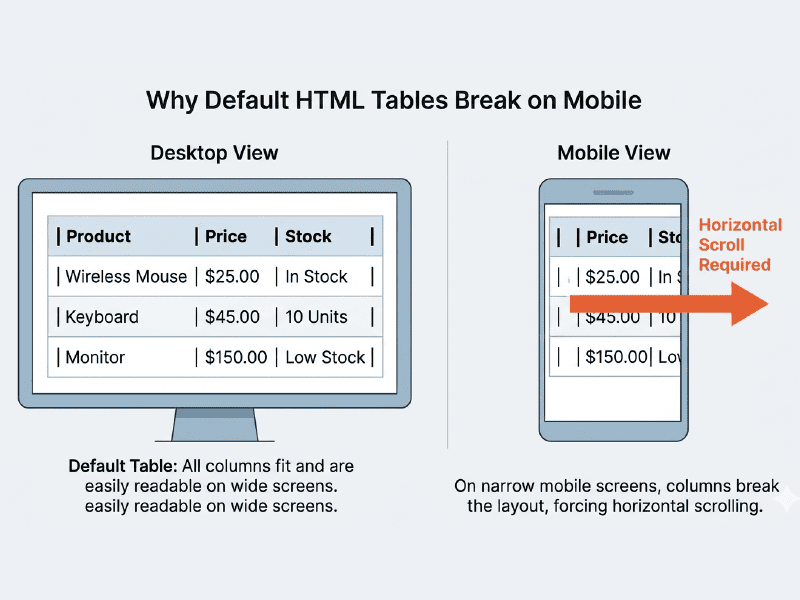
Standard HTML tables are designed to keep rows and columns aligned, which works well on large screens but often creates problems on mobile devices. When a table contains multiple columns, long text strings, pricing data, or technical specifications, its width can exceed the available screen space. As a result, users are forced to zoom in or scroll horizontally to read the content.
Research from the Nielsen Norman Group’s usability study on horizontal scrolling found that horizontal scrolling increases user effort because people must navigate in two directions to consume information. Similarly, Google’s mobile-friendly website recommendations for responsive content emphasize designing pages that fit smaller screens without requiring side-to-side scrolling or excessive zooming.
This challenge becomes even more significant for websites displaying comparison charts, pricing tables, product specifications, financial reports, or analytics dashboards. A table that looks perfectly organized on a desktop monitor can quickly become frustrating on a smartphone if responsiveness is not considered during development. That’s why modern web design often combines semantic HTML tables with responsive CSS techniques to improve readability across all devices.
The Importance of Semantic HTML Structure
Before making a table responsive, it’s important to build it using semantic HTML. Semantic elements help browsers, search engines, and assistive technologies understand the relationship between table headers, rows, and data cells. According to the W3C Web Accessibility Initiative’s guidance on accessible tables, properly structured tables enable screen readers to identify header information and correctly associate it with related data cells, making tabular content easier to navigate for users with disabilities.
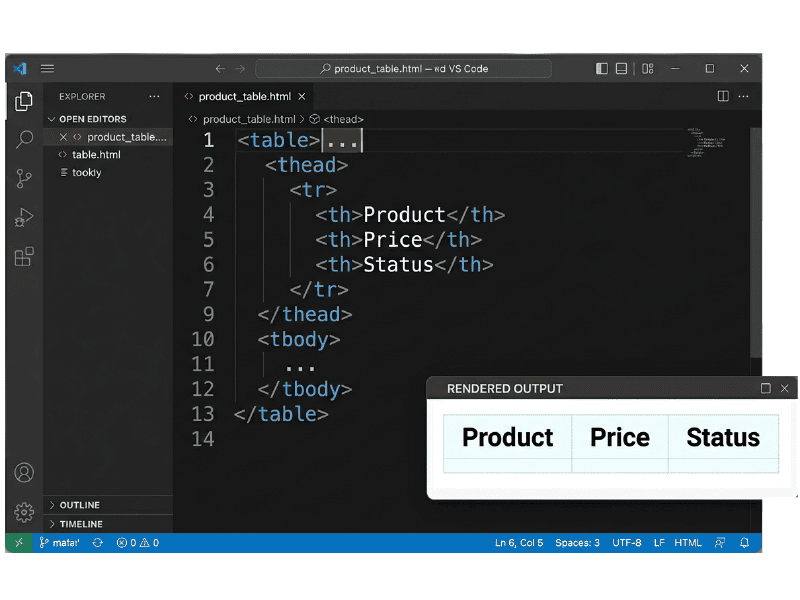
Semantic markup also improves maintainability and content clarity. Research from WebAIM’s accessibility best practices for data tables explains that table headers, captions, and logical row structures help users understand complex information more efficiently. Whether you’re displaying pricing plans, inventory reports, financial data, or product comparisons, using elements such as
“, `
`, `
`, and `
`
creates a stronger foundation for both accessibility and responsive design.
Building your table correctly from the beginning reduces future development issues and ensures that any responsive CSS techniques applied later work more effectively across different devices and assistive technologies.
Setting Up Your Basic Table HTML Code
Every responsive table starts with a solid HTML foundation. Before applying CSS, you should create a properly structured table using standard HTML elements. According to the MDN reference for the HTML table element, tables are specifically designed to display information organized into rows and columns, making them ideal for pricing data, schedules, product comparisons, and reports.
Using the correct structure also improves long-term maintainability. The W3C specification for tabular data explains that tables should clearly separate header information from body content so browsers and assistive technologies can correctly interpret relationships between cells. By starting with clean semantic markup, you’ll have a stronger foundation for the responsive techniques we’ll apply later in this guide.
Creating the Table Header and Body Tags
A well-structured table should separate column headings from data rows. This is typically accomplished using the `
` and `
` elements. According to the
, clearly defining table headers improves navigation for both users and screen readers.
Here’s a simple example:
“`html
| Product | Price | Category | Availability |
|---|---|---|---|
| Wireless Mouse | $29 | Accessories | In Stock |
| Mechanical Keyboard | $89 | Accessories | In Stock |
| USB-C Hub | $49 | Connectivity | Limited Stock |
“`
This structure creates a clear distinction between headings and content, which improves readability and provides a better foundation for responsive behavior on smaller screens.
Adding Sample Data to Your Rows and Columns
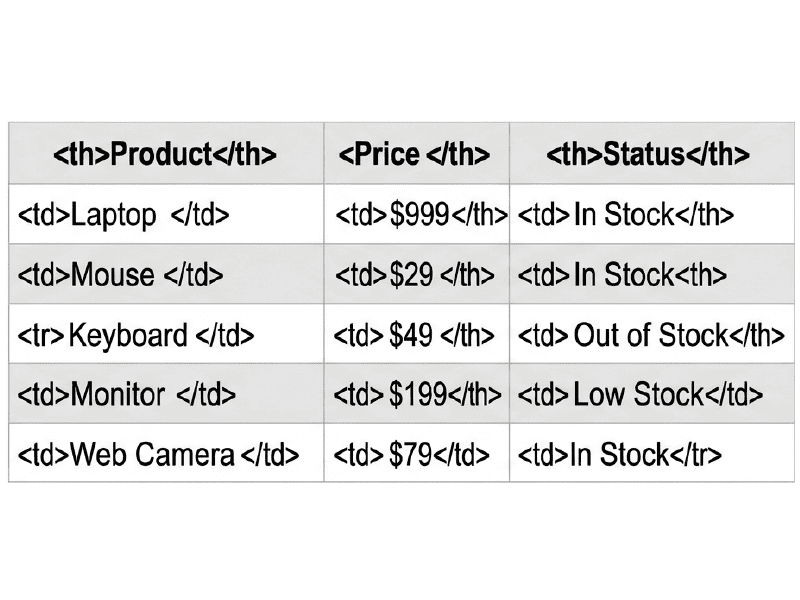
Once the table structure is in place, the next step is populating it with meaningful data. Tables are most effective when users can quickly compare information across rows and columns. According to the Nielsen Norman Group’s research on data table usability, users often rely on tables when they need to scan, compare, and locate specific information efficiently. This makes tables particularly useful for pricing comparisons, feature matrices, product specifications, schedules, and business reports.
After adding your data, preview the table on both desktop and mobile devices. On a large screen, the table will typically appear organized and easy to read. However, on smaller screens, multiple columns may extend beyond the viewport, forcing users to zoom or scroll horizontally. This is one of the most common responsive design issues developers encounter when working with tabular data and is exactly what we’ll solve in the next section.
For example, a four-column pricing table might display perfectly on a desktop monitor but become difficult to navigate on a smartphone. Understanding this limitation helps explain why responsive table techniques have become a standard part of modern web development.
Method 1: Implementing a Horizontal Scroll with CSS
One of the simplest and most widely used responsive table techniques is horizontal scrolling. Instead of forcing the table to shrink or rearrange its content, this approach allows the table to keep its natural structure while enabling users to scroll sideways when necessary.
This method is commonly recommended because it preserves the original relationships between rows and columns. According to the Bootstrap documentation on responsive tables, wrapping tables inside a responsive container helps prevent layout breakage on smaller devices while maintaining data integrity. The approach is especially useful for large datasets, financial reports, comparison charts, and technical specifications where collapsing columns could reduce clarity.
Research from the Interaction Design Foundation’s responsive design resources also highlights that responsive interfaces should adapt to different screen sizes while preserving usability. For complex tables, horizontal scrolling often provides the most practical balance between readability and responsive behavior.
In the following steps, we’ll create a simple container and apply CSS that allows users to scroll horizontally only when the available screen width becomes too small for the table.
Wrapping Your Table in a Container Div
The first step is placing your table inside a wrapper container.
| Product | Price | Status | Support |
|---|---|---|---|
| Laptop | $999 | In Stock |

The container becomes responsible for handling overflow while the table itself remains unchanged.
Applying the Overflow-X Auto Property
Once the wrapper is added, apply horizontal scrolling through CSS.
overflow-x: auto;
-webkit-overflow-scrolling: touch;
}table {
width: 100%;
border-collapse: collapse;
}
Interactive CSS Overflow Simulator
Click the view buttons below to change layout size and witness overflow-x: auto work.
| Tool Name | Security Protocol | Signup Required | Performance | Status |
|---|---|---|---|---|
| Password Generator | 100% Secure (HTTPS) | No | Under 1.5 seconds | Active |
| Multi Hash Generator | 100% Secure (HTTPS) | No | Under 1.5 seconds | Active |
| Ultimate Data Converter | 100% Secure (HTTPS) | No | Under 1.5 seconds | Active |
| Real-time QR Code Generator | 100% Secure (HTTPS) | No | Under 1.5 seconds | Active |
The property overflow-x: auto tells the browser to create a horizontal scrollbar only when the table becomes wider than the available screen space. The additional property -webkit-overflow-scrolling: touch improves scrolling performance on iOS devices.
According to MDN’s overflow-x documentation, this technique is widely supported across modern browsers and provides a reliable way to manage oversized content.
Pros and Cons of the Scrollable Approach
The biggest advantage of this method is simplicity. You keep the semantic structure intact, preserve accessibility, and avoid rewriting table layouts for different screen sizes.
However, research from the Nielsen Norman Group shows that horizontal scrolling increases interaction effort because users must navigate in two directions to view information. This can reduce usability for tables that users frequently interact with on mobile devices.
For highly detailed datasets, horizontal scrolling is often the best option. For simpler tables with fewer columns, a stacked mobile layout usually provides a better user experience.
Method 2: Stacking Table Data for Mobile Devices
While horizontal scrolling preserves the original layout, many designers prefer a mobile-first approach where each row transforms into an easy-to-read content card.
This technique has become increasingly popular because smartphones now account for a large share of global web traffic. According to Statista’s mobile traffic research, mobile devices consistently generate more than half of worldwide web traffic, making mobile readability a critical design consideration.
Instead of forcing users to scroll sideways, stacked tables reorganize information vertically.
Using CSS Media Queries for Screen Breakpoints
Media queries allow developers to apply different styles based on screen width.
The breakpoint of 768px is commonly used because it captures most tablets and smartphones. According to the MDN Media Queries Guide, media queries are one of the core technologies behind responsive web design.
Inside this breakpoint, we can completely transform how the table displays.
Converting Table Rows into Block Elements
Next, convert the traditional table structure into stacked blocks.
{table,
thead,
tbody,
th,
td,
tr {
display: block;
}thead {
display: none;
}tr {
margin-bottom: 15px;
border: 1px solid #ddd;
padding: 10px;
}
}
This removes the traditional grid layout and allows each row to behave like an individual content card.
The technique is widely used throughout responsive web design because it eliminates horizontal scrolling while preserving all table data.
Utilizing Data Attributes for Mobile Labels
One challenge appears after hiding the table header: users can no longer tell what each value represents.
The solution is to add custom data attributes.
Starter$195Email
Then use CSS to display those labels.
@media screen and (max-width: 768px) {
td {
position: relative;
padding-left: 50%;
}
td::before {
content: attr(data-label);
position: absolute;
left: 10px;
font-weight: bold;
}
}
According to the MDN documentation on data attributes, custom data attributes provide a standards-compliant way to store additional information within HTML elements. Combined with CSS pseudo-elements, they create clean, readable mobile layouts without duplicating content.
This approach produces a card-style presentation that many users find easier to read on smartphones than traditional tables.
Styling Your Table for a Modern Look
Good table design is not just about aesthetics—it directly impacts readability and usability. According to the Nielsen Norman Group, users rely on tables to compare values, identify patterns, and find information quickly. Likewise, the IBM Carbon Design System emphasizes that clear alignment, spacing, and visual hierarchy help users process tabular data more efficiently.
To improve readability, add generous cell padding, clean borders, subtle hover effects, and alternating row colors using the :nth-child(even) selector. These simple enhancements make large datasets easier to scan and reduce the likelihood of users losing their place when reviewing pricing tables, product comparisons, reports, or technical documentation.
width: 100%;
border-collapse: collapse;
}th,
td {
padding: 12px;
border: 1px solid #ddd;
}tr:nth-child(even) {
background-color: #f8f9fa;
}tr:hover {
background-color: #f1f3f5;
}
Adding Padding, Borders, and Hover Effects
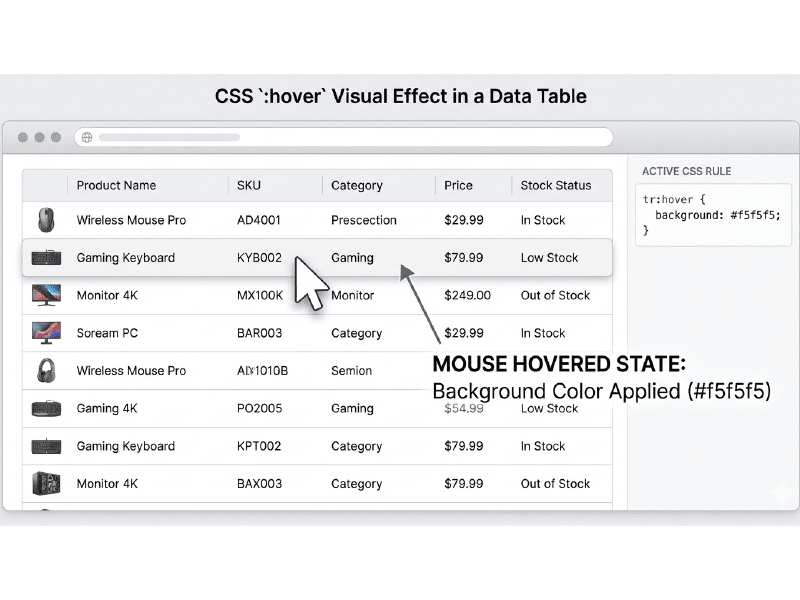
Good table design is not only about displaying data—it is also about making information easier to read and interact with. Research from the Adobe Research Web Conference Study found that table formatting choices directly affect how quickly users can complete tasks on mobile devices. Small improvements in spacing and visual organization can significantly improve the reading experience.
Padding creates breathing room between cell content and borders, making dense datasets easier to scan. Subtle borders help separate rows and columns without overwhelming the layout. Hover effects add visual feedback when users move their cursor across a row, helping them track information in wide tables. According to HTML Tables Styling & Accessibility Best Practices, hover states provide additional visual context when users examine large datasets, while usability research from TestMu AI notes that hover interactions help users identify interactive elements and improve interface feedback.
width: 100%;
border-collapse: collapse;
}th,
td {
padding: 12px 16px;
border: 1px solid #ddd;
text-align: left;
}tbody tr:hover {
background-color: #f5f5f5;
}
This simple styling creates cleaner separation between data points while improving readability and user interaction without adding unnecessary visual complexity.
Implementing Alternating Row Colors (Zebra Striping)
When tables contain many rows, users can easily lose track of which row they are reading. One of the most common solutions is zebra striping, where alternating rows use slightly different background colors. According to Wikipedia’s overview of Zebra Striping, this technique has been used for decades to improve readability in wide tables and data-heavy layouts.
Research published in Human Factors and Ergonomics Society Proceedings examined how zebra striping influences visual flow in grid-based designs, while the Adobe Research mobile table study found that users often prefer striped rows when interacting with large tables. Although zebra striping may not always increase task speed, it improves visual organization and makes long datasets feel less overwhelming.
The easiest way to apply zebra striping is through the CSS :nth-child() selector:
background-color: #f8f9fa;
}
This rule automatically applies a different background color to every second row, creating a cleaner visual rhythm that helps users follow data across the table more comfortably.
Stop Coding Manually: Generate Responsive Tables Instantly
Learning responsive table techniques is valuable, but manually creating table structures, styling rules, and mobile breakpoints can become repetitive as projects grow. The MDN Accessibility Guide notes that accessible tables require proper headers, structure, and relationships between cells. Maintaining these standards manually across multiple projects can consume significant development time.
Instead of repeatedly writing HTML and CSS from scratch, you can use UtilifyZone’s Free HTML Table Generator to visually build, customize, and export responsive table code in seconds. Create rows and columns, adjust colors and typography, preview changes in real time, and generate clean HTML instantly. This streamlined workflow allows developers, marketers, and content creators to spend less time on repetitive markup and more time building experiences that deliver value to users.
Why Visual Table Builders Outperform Hand-Coding
Building tables manually gives developers full control, but it also introduces repetitive work. Every table requires creating rows, columns, styling rules, responsive behaviors, and testing across multiple devices. Research from ACM Queue highlights that developers often spend significant time on repetitive implementation tasks rather than solving higher-value problems. Reducing repetitive coding can improve productivity and allow teams to focus on functionality rather than boilerplate markup.
Visual builders simplify this workflow by generating clean structures automatically while still allowing customization. According to research from the Microsoft Research Developer Productivity Project, tools that reduce context switching and repetitive actions can positively impact development efficiency. Instead of manually adjusting every table property, developers can focus on content organization, styling decisions, and user experience while the tool handles repetitive code generation.
Exporting Framework-Ready Code with Utilifyzone
After creating and styling a table, the next challenge is integrating it into a real project. Different websites often rely on different frontend frameworks, each with its own conventions and class structures. According to the State of CSS Survey, frameworks and utility-based styling systems remain widely used throughout modern web development because they accelerate implementation and improve consistency.
Instead of manually rewriting the same table structure for multiple projects, developers can generate framework-ready markup directly from Utilifyzone’s Free HTML Table Generator.
The tool allows users to visually create tables and export clean code suitable for websites, blogs, landing pages, documentation portals, and web applications. Because the generated code follows standard HTML practices described by the WHATWG HTML Standard, developers can easily extend or customize the output to match project requirements.
Conclusion
Responsive tables are an essential part of modern web development. Whether you’re displaying pricing plans, technical specifications, comparison charts, research findings, or business reports, users expect information to remain readable across all screen sizes. Research from Statista consistently shows that mobile devices account for a large share of global web traffic, making responsive design a necessity rather than an optional enhancement.
Throughout this guide, you’ve learned how semantic HTML provides the foundation for accessibility, how horizontal scrolling can improve usability for large datasets, and how advanced CSS techniques can transform tables into mobile-friendly layouts. If you regularly create tables, visual generators can dramatically reduce development time while helping maintain consistent, responsive, and accessible code structures.
Frequently Asked Questions
Do Responsive Tables Improve Mobile User Experience?
Yes. Mobile users often struggle with wide tables that extend beyond the screen width. According to Nielsen Norman Group, excessive horizontal scrolling increases interaction costs and makes information harder to consume. Responsive table techniques help present data in a more accessible and readable format across smaller devices.
Are HTML Tables Still Relevant in Modern Web Development?
Absolutely. The WHATWG HTML Living Standard continues to define and maintain table elements because they remain the correct semantic solution for displaying structured data. While CSS Grid and Flexbox are excellent layout systems, tabular information is still best represented using semantic table markup.
Why Is Semantic Table Markup Important?
Semantic markup helps browsers, search engines, and assistive technologies understand relationships between rows, columns, headers, and data cells. The W3C Web Accessibility Initiative recommends proper table structure because it improves accessibility for screen reader users and makes tabular data easier to interpret.
Should I Use CSS Grid Instead of Tables?
CSS Grid is ideal for page layouts and interface structures, but semantic tables remain the recommended approach for structured datasets. According to MDN Web Docs, Grid excels at layout management, while table elements provide built-in relationships that are important for accessibility and data presentation.
What’s the Fastest Way to Build Responsive Tables?
For many developers, the fastest approach is using a visual HTML table generator. Visual tools eliminate repetitive markup creation, provide instant previews, and simplify responsive styling. This allows users to focus on content and presentation rather than manually writing and debugging table code.
Further Learning Resources
If you’d like to deepen your understanding of HTML tables, accessibility, and responsive design, these resources are widely respected within the web development community:
MDN Web Docs — HTML Table Element Reference
W3C Web Accessibility Initiative — Accessible Tables Tutorial
WHATWG HTML Living Standard — Tables
Google web.dev — Responsive Web Design Basics
Nielsen Norman Group — Horizontal Scrolling and Usability
These references provide deeper technical guidance and support many of the responsive design principles discussed throughout this tutorial.