 Utilify Zone
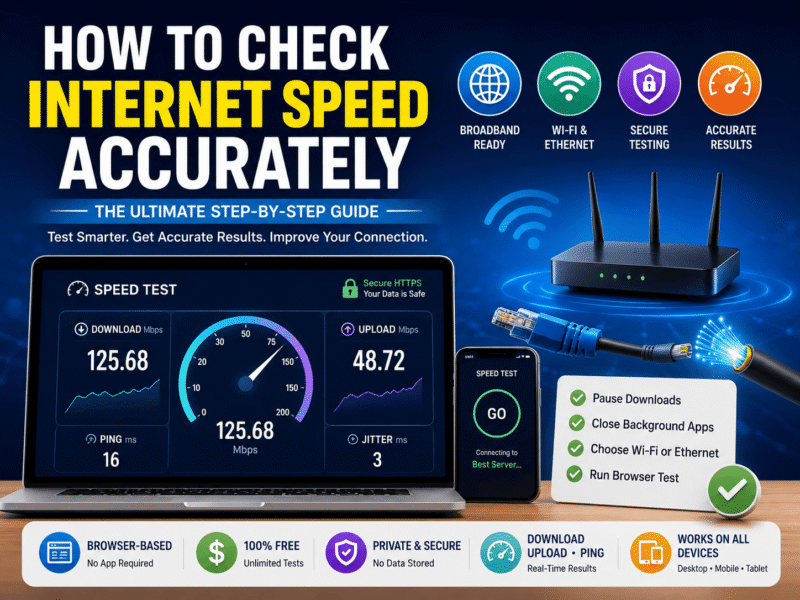
Many people assume pressing “Start Test” is enough to measure their internet speed, but the result often reflects more than just the quality of their broadband connection. Active downloads, cloud synchronization, VPNs, browser extensions, Wi-Fi interference, and even the distance to the testing server can all influence the final numbers. The MDN Web Docs guide on network latency explains that network delay is affected by DNS lookups, TCP handshakes, TLS negotiation, and overall connection conditions—not simply raw bandwidth.
Learning how to check internet speed accurately means preparing your device, network, and browser before running a test. This guide explains the correct testing process, helps you interpret download, upload, and latency measurements, and shows how to avoid common mistakes that produce misleading results. By the end, you’ll know the accurate way to test an internet connection and confidently verify whether your network is performing as expected.
Step-by-Step Guide: How to Test Wi-Fi Speed Correctly at Home
Running an internet speed test without preparation can produce inconsistent or artificially low results. Following a few simple steps helps isolate your actual broadband performance from temporary network activity or local device interference.
Step 1: Isolate Your Network Environment Before Testing
Background activity can consume significant bandwidth without being immediately visible. Cloud backups, software updates, streaming devices, online gaming, and synchronized folders continue transferring data while a speed test runs, reducing the bandwidth available for measurement. The Cloudflare engineering team notes that browser-based speed tests measure the complete path between your device and the network, meaning local activity directly influences the reported results.
Before testing, pause large downloads, temporarily stop cloud synchronization, close streaming applications, and disconnect devices performing heavy network activity. These simple preparations help produce a measurement that more accurately represents your available broadband capacity.
Step 2: Choose Between Ethernet and Wi-Fi Connections
An Ethernet cable provides the most direct connection between your computer and your router, eliminating wireless interference caused by walls, neighboring Wi-Fi networks, household electronics, and signal distance. Testing over Ethernet establishes the closest approximation of the speed your Internet Service Provider delivers to your home.
Wi-Fi testing serves a different purpose—it measures the performance users actually experience throughout the house. Comparing Ethernet and Wi-Fi results makes it easier to determine whether slow performance originates from your ISP or from your wireless network itself. The FCC Broadband Speed Guide recommends comparing wired and wireless connections when diagnosing broadband performance issues.
Step 3: Configure Your Web Browser for Pure Test Accuracy
Virtual Private Networks (VPNs), proxy servers, privacy extensions, and some security software route traffic through additional servers before it reaches the destination. This extra processing can increase latency and reduce measured throughput. The MDN Web Docs guide on network latency explains that every additional network hop contributes to overall response time.
For the accurate way to test an internet connection, temporarily disable VPNs if you want to measure your ISP’s native performance, open a clean browser tab, and close unnecessary extensions that actively inspect or filter web traffic during the test.
Decoding Your Speed Test Metrics: What Ping, Download, and Upload Really Mean
A speed test generates several measurements because internet performance cannot be represented by download speed alone. Download throughput, upload throughput, latency, and network consistency all affect different online activities. The Cloudflare Aggregated Internet Measurement (AIM) project measures multiple network quality indicators—including latency, jitter, download, upload, and packet loss—to provide a more complete assessment of connection quality.
Ping & Latency: Why Low Reaction Time Trumps Raw Speed
Ping measures the time required for a small packet of data to travel from your device to a server and back again. Lower latency improves activities that require immediate responses, including online gaming, VoIP calls, remote desktop sessions, and video conferencing. The Cloudflare Learning Center explains that latency affects responsiveness independently of available bandwidth.
Jitter represents fluctuations in latency rather than average latency itself. Even with fast download speeds, unstable jitter can produce choppy voice calls, delayed video meetings, and inconsistent gaming performance because packets no longer arrive at predictable intervals.
Download Speed: Calculating Bandwidth Needs for Streaming and Browsing
Download speed determines how quickly content reaches your device, influencing web browsing, software downloads, cloud storage synchronization, and media streaming. According to the FCC Broadband Speed Guide, approximately 5 Mbps supports HD video streaming, while 25 Mbps is generally recommended for a single 4K Ultra HD stream. Homes with multiple users streaming, gaming, and attending video meetings simultaneously often benefit from substantially higher bandwidth.
| Online Activity | Recommended Download Speed* |
| Email & Web Browsing | 1–5 Mbps |
| HD Video Streaming | 5 Mbps |
| 4K UHD Streaming | 25 Mbps |
| Multiple Connected Devices | 100+ Mbps |
Upload Speed: The Unsung Hero of Remote Work and Cloud Backups
Upload speed measures how quickly your device sends data to the internet. While many people focus on download speed, upload bandwidth becomes equally important when joining video meetings, backing up files to cloud storage, livestreaming, or sending large files. The FCC Broadband Speed Guide explains that activities involving outbound data rely heavily on upload capacity, especially in homes with multiple connected users.
Many residential broadband plans are asymmetrical, meaning download speeds are significantly higher than upload speeds. This design works well for streaming and browsing but can slow cloud backups, remote work, and high-resolution video conferencing when upload bandwidth becomes saturated.
5 Common Pitfalls That Distort Internet Speed Test Results
Even the most accurate internet speed meter cannot compensate for poor testing conditions. Many inconsistent results are caused by the testing environment rather than the internet connection itself. Understanding these common mistakes helps you measure your actual broadband performance more reliably.
Background Operating System and App Updates
Modern operating systems automatically download security patches, application updates, and cloud-synchronized files in the background. These transfers quietly consume available bandwidth while your speed test is running, lowering the reported download and upload results. The Microsoft Windows documentation explains that Windows Update continues downloading updates automatically unless paused or configured differently.
Before testing, temporarily pause operating system updates, cloud storage synchronization, game downloads, and streaming services to ensure your internet connection is dedicated to the speed test.
Router Bottlenecks, Heat, and Older Hardware
Your router processes every packet traveling between your local devices and your internet provider. Older routers may not support modern Wi-Fi standards, faster Ethernet ports, or newer encryption methods, limiting the speeds they can deliver even if your ISP provides a much faster connection. The Wi-Fi Alliance explains that newer Wi-Fi generations improve throughput, efficiency, and network capacity while reducing congestion in busy wireless environments.
Overheating, outdated firmware, and aging hardware can also reduce router performance over time. Restarting networking equipment periodically and keeping firmware updated helps maintain stable performance before assuming your ISP is responsible for slower speeds.
Browser Acceleration and TCP Connection Ramp-Up
Internet speed tests don’t instantly reach maximum throughput. Every connection begins with DNS resolution, TCP handshakes, and TLS negotiation before data transfers at full speed. The MDN Web Docs guide on network latency explains that connection setup contributes to overall response time before data transmission begins.
Modern speed tests overcome this limitation by opening multiple simultaneous data streams instead of relying on a single connection. The Cloudflare engineering team explains that multi-threaded testing helps saturate high-bandwidth connections more effectively, producing measurements that better represent the maximum throughput available from modern broadband services.
Educational Troubleshooting: How to Fix Common Network Speed Lag
Not every slow speed test indicates a problem with your Internet Service Provider. Wireless interference, outdated equipment, network congestion, and incorrect Wi-Fi settings are among the most common causes of reduced performance inside homes and offices.
2.4 GHz vs. 5 GHz vs. 6 GHz Wi-Fi Bands: Which Should You Use?
Different Wi-Fi frequency bands are designed for different situations. The Wi-Fi Alliance explains that newer Wi-Fi technologies improve throughput, efficiency, and congestion management, while each frequency band offers unique advantages depending on distance and network conditions.
| Wi-Fi Band | Best For | Advantages | Limitations |
| 2.4 GHz | Long-range coverage | Better wall penetration and wider coverage | Lower maximum speed and more interference from Bluetooth, microwaves, and nearby networks |
| 5 GHz | Streaming, gaming, video calls | Higher throughput with less congestion | Shorter range than 2.4 GHz |
| 6 GHz (Wi-Fi 6E / Wi-Fi 7) | High-performance networks | Additional spectrum, wider channels, and minimal interference | Requires compatible routers and client devices |
When performing an accurate speed test, connect to the fastest supported Wi-Fi band available for your device. If you’re close to the router, 5 GHz or 6 GHz generally provides more representative measurements of your broadband connection.
Quick Network Diagnostics Before Calling Your ISP
Before reporting slow internet speeds, perform a few basic checks to eliminate common local issues. The FCC Broadband Speed Guide recommends testing under consistent conditions before assuming a broadband service problem.
Use this quick checklist before contacting technical support:
- Restart your modem and router, leaving them powered off for approximately 30 seconds before reconnecting.
- Verify that Ethernet connections use cables appropriate for your network speed (such as Cat5e, Cat6, or newer for Gigabit Ethernet).
- Restart the testing device and close unnecessary applications.
- Clear your browser cache if pages or testing interfaces behave unexpectedly.
- Repeat the speed test using both Wi-Fi and Ethernet to determine whether the issue is wireless or broadband-related.
- Run multiple tests throughout the day to identify recurring congestion rather than relying on a single measurement, as recommended by Measurement Lab (M-Lab).
How to Measure Internet Speed Without Installing Apps or Software
Modern browsers are capable of performing sophisticated network measurements without requiring users to install desktop software. Advances in HTML5, JavaScript, browser networking APIs, and secure HTTPS connections allow accurate bandwidth testing directly within supported web browsers. The MDN Performance API documentation explains how browsers expose high-resolution timing information that web applications use to measure network performance efficiently.
The Security Risks of Desktop and Mobile Speed Test Apps
Not every speed-testing application is harmful, but installing unnecessary software introduces additional security, privacy, and maintenance considerations. Every installed application requires updates, consumes storage space, and may request permissions beyond what is needed for measuring internet performance. The Cybersecurity and Infrastructure Security Agency (CISA) recommends installing software only from trusted sources and limiting unnecessary applications to reduce potential security risks.
If your only goal is measuring download speed, upload speed, and latency, a browser-based solution often eliminates the need for permanent software installations while simplifying access across multiple devices.
Why Client-Side Browser Testing Is Safer and Faster
Modern browsers can perform advanced networking tasks using native web technologies without installing background services. The MDN Performance API enables web applications to collect precise timing information, while browser rendering engines execute these operations directly within the current browsing session.
Because browser-based testing requires no installation, users avoid software updates, administrator permissions, and unnecessary background processes. This provides a faster way to measure internet speed without an app, especially when testing from shared computers, workstations, tablets, or mobile devices.
Put Your Knowledge to the Test: Check Your Real Broadband Speed Now
Understanding how internet speed testing works is only valuable if you apply those best practices during the test itself. Now that you’ve prepared your device, minimized background activity, selected the appropriate network connection, and understand the meaning of ping, download, and upload speeds, you’re ready to obtain a more representative measurement of your broadband performance.
Get Instant, Unbiased Results with UtilifyZone’s Meter
After following the recommendations in this guide, you can now use the Check Broadband Speed Online tool to measure your connection under optimized conditions. Running the test after reducing background traffic and selecting the appropriate Wi-Fi or Ethernet connection helps produce results that more closely reflect your actual internet performance.
The browser-based tool measures download speed, upload speed, and ping in real time while requiring no account registration, software installation, or subscription, making it suitable for quickly verifying home, office, or fiber internet connections.
Run Your Free, Secure Internet Speed Test
You’re now ready to measure your connection using the same best practices covered throughout this guide. Open the Check Broadband Speed Online tool, ensure background downloads are paused, choose the appropriate network connection, and start the test. Within seconds, you’ll receive live measurements for download speed, upload speed, and ping without creating an account or installing additional software.
Unlike many desktop utilities, UtilifyZone works entirely in your browser over an encrypted HTTPS connection, allowing you to check broadband, fiber, cable, DSL, or Wi-Fi performance quickly while maintaining a simple, privacy-focused experience.
Best Practices for Getting Consistent Internet Speed Test Results
A single speed test provides a snapshot of your connection at one moment. Following consistent testing practices makes it easier to compare results over days, weeks, or after network upgrades. The Measurement Lab (M-Lab) project recommends repeated measurements because broadband performance naturally changes throughout the day.
Test Using the Same Device Every Time
Different devices have different Wi-Fi chipsets, processors, operating systems, and browser implementations. Even when connected to the same network, two devices may produce slightly different speed test results because their hardware capabilities differ.
For meaningful comparisons, always test using the same computer or smartphone whenever possible. This removes hardware differences from your measurements and makes it easier to identify genuine changes in broadband performance.
Stay Close to Your Wi-Fi Router
Wireless signal strength decreases as the distance between your device and the router increases. Walls, ceilings, furniture, and other wireless networks also reduce signal quality. The Wi-Fi Alliance explains that signal quality directly affects wireless throughput and connection reliability.
If you’re testing Wi-Fi performance, perform the test in the same room or at a consistent location to produce comparable results.
Repeat Tests at Different Times of Day
Broadband usage changes throughout the day as more people stream videos, attend meetings, and play online games. Running several tests during the morning, afternoon, and evening helps identify recurring congestion patterns instead of relying on one isolated measurement.
Keeping a simple history of results provides a clearer picture of your network’s long-term performance than any single speed test.
When Should You Contact Your Internet Service Provider?
Not every slow result requires technical support. Many performance issues originate inside the home network rather than the ISP’s infrastructure.
Your Speeds Stay Consistently Below Your Plan
If multiple properly conducted tests consistently report significantly lower speeds than your subscribed broadband package—even after restarting your modem and router—it may indicate a provisioning issue or line problem. The FCC Broadband Speed Guide recommends testing under controlled conditions before reporting broadband performance issues.
Having several recent speed test results available helps ISP support teams diagnose problems more efficiently.
Latency Remains High Even After Troubleshooting
High latency that persists across multiple devices and both Wi-Fi and Ethernet connections may indicate network congestion or routing problems outside your home network. The Cloudflare Learning Center explains that latency can be affected by network routing, congestion, and physical distance to destination servers.
Documenting repeated ping measurements before contacting your ISP provides useful diagnostic information.
Frequent Connection Drops
If your internet disconnects repeatedly during normal usage, the issue may involve signal quality, damaged cables, faulty networking equipment, or service interruptions. Recording the time, frequency, and circumstances of these interruptions helps technical support identify recurring faults more quickly.
Frequently Asked Questions
These answers address some of the most common questions users have after learning how to check internet speed accurately.
H3: How often should I run an internet speed test?
Internet performance naturally changes throughout the day because network demand varies as more users share local and regional infrastructure. The Measurement Lab (M-Lab) project recommends running multiple tests over time rather than relying on a single measurement to understand long-term broadband performance.
For the most reliable comparison, test your connection at the same location, using the same device, and under similar network conditions. Keeping a consistent testing routine makes it easier to identify recurring congestion, hardware issues, or improvements after upgrading your internet plan.
Why do different internet speed tests show different results?
Different speed testing services may use different server locations, testing methodologies, connection algorithms, and network routes. These differences can produce slightly different measurements even when testing the same internet connection. The Cloudflare engineering blog explains that server selection, latency, and transfer methodology all influence measured throughput.
Instead of comparing individual numbers across multiple websites, use the same testing platform consistently. This provides a more meaningful baseline for tracking changes in your network performance over time.
Final Thoughts
Checking your internet speed accurately is about more than pressing a button. Preparing your network, understanding what download speed, upload speed, and latency actually measure, and avoiding common testing mistakes all contribute to more reliable results.
When you’re ready to verify your connection, use the Check Broadband Speed Online tool to measure your broadband performance directly in your browser. It requires no signup, no software installation, and no subscription, making it a fast, privacy-focused way to evaluate your connection whenever you need accurate download, upload, and ping measurements.