 Utilify Zone
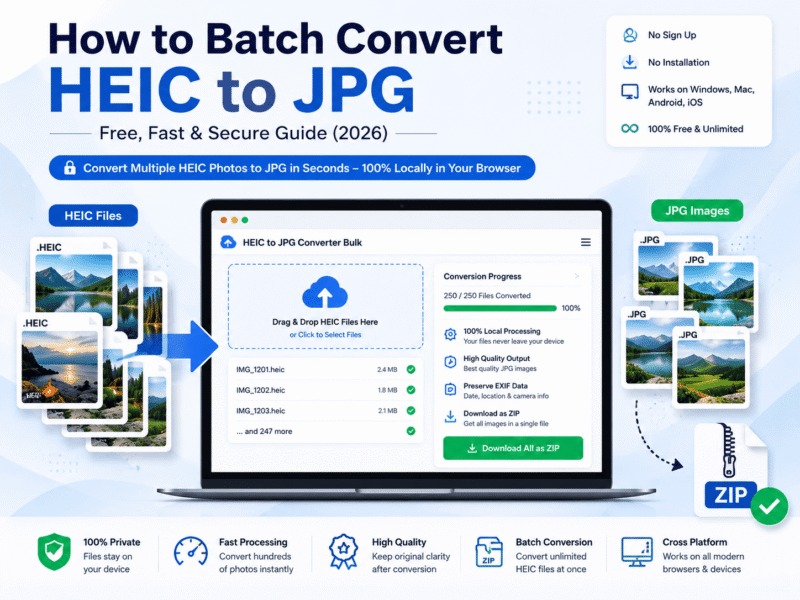
Apple devices save photos in the HEIC format because it offers better storage efficiency than older image formats. However, many websites, Windows applications, and third-party programs still expect JPG images. If you need to convert hundreds of iPhone photos, doing them individually wastes time.
This guide explains why HEIC exists, the best ways to batch convert it, the limitations of traditional methods, and how modern browser-based tools make the process faster while keeping your photos private.
Why Are Your iPhone Photos Saved as HEIC?
Since iOS 11, Apple has used HEIC as the default image format for most photos captured on iPhone and iPad. The change was made to improve storage efficiency while maintaining excellent visual quality.
The Technology Behind Apple’s Format
HEIC is Apple’s implementation of the High Efficiency Image File Format (HEIF), an international standard defined by ISO/IEC 23008-12. Unlike JPEG, HEIF uses modern image compression techniques that can store photos at similar visual quality while requiring substantially less storage space.
Apple states that HEIF allows users to keep more photos and videos on their devices without increasing storage requirements. This is why nearly every modern iPhone captures images as HEIC by default.
The Cross-Platform Compatibility Problem
Although HEIC is efficient, compatibility is still inconsistent outside Apple’s ecosystem. Older versions of Windows, legacy image editors, document management systems, and many online upload forms cannot open HEIC images unless additional codecs or extensions are installed.
Microsoft provides HEIF Image Extensions for Windows to improve compatibility, but JPG remains the most universally accepted image format across operating systems, browsers, printers, and websites. Converting iPhone HEIC photos to JPG is often the simplest way to ensure your images can be opened and shared anywhere.
Traditional Methods for Batch Conversion (and Their Flaws)
Several methods can convert HEIC images into JPG files, but each has practical limitations depending on the number of photos, operating system, and privacy requirements.
Method 1: Using Mac Preview or Automator
macOS includes built-in tools such as Preview and Automator that can perform small batch conversions without installing additional software. These utilities work well for occasional tasks but become slower to manage when dealing with hundreds or thousands of photos.
If you’re looking to batch convert HEIC to JPG on Mac, these native tools provide a good starting point, but they remain limited to Apple devices and aren’t available to Windows users.
Method 2: Downloading Desktop Software
Many users install dedicated conversion programs for Windows or macOS when they need larger batch processing. While these applications often include advanced features, they also consume storage space, require installation, and frequently reserve unlimited batch conversion or premium export options for paid plans.
For users who only need occasional conversions, installing another application may add unnecessary complexity to a simple task.
Method 3: Cloud-Based Online Converters
Many online converters require users to upload their entire photo collection to remote servers before conversion begins. Large batches may also be restricted by file size limits, daily quotas, or waiting queues.
For personal photos containing family memories, business documents, or private information, uploading files to external servers introduces additional privacy considerations. Modern browser-based processing offers an alternative by keeping conversions on the user’s own device rather than transferring images across the internet.
The Modern Solution: Client-Side Browser Processing
Modern web technologies allow many file conversions to happen entirely inside the browser. Instead of uploading photos to a remote server, supported applications can process files locally using JavaScript and browser APIs, giving users greater privacy and reducing unnecessary network transfers.
How Local Browser Processing Protects Your Privacy
Unlike traditional cloud converters, client-side tools read your selected HEIC files directly inside the browser. Because the conversion happens locally, your family photos, business images, and personal documents do not need to be uploaded to an external server before being converted.
The MDN File API documentation explains that browsers can securely access user-selected files locally. This browser-based approach aligns with privacy-by-design principles by minimizing unnecessary data transmission.
Faster Batch Processing Without Installation
Browser technology has improved significantly over the last few years. Modern JavaScript engines, optimized image libraries, and efficient memory handling allow large groups of images to be processed directly on the user’s device without installing desktop software.
For users who want to change HEIC to JPG locally, this approach removes installation steps, software updates, and account creation while keeping the entire workflow inside a familiar web browser.
Step-by-Step: Converting Unlimited HEIC Images Instantly
After understanding the available conversion methods, the fastest workflow is to use a browser-based utility that supports batch processing, local conversion, and ZIP downloads.
Step 1: Open the Free Conversion Tool
Visit the HEIC to JPG Converter Bulk and wait for the page to load. The tool works directly in your browser, so there’s nothing to install and no account is required before starting your first conversion.
This workflow is ideal for users who need to convert photos immediately without downloading additional software or creating an account.
Step 2: Drag and Drop Your HEIC Files
Move your HEIC photos from your iPhone, external drive, or computer into one folder, then select them all and drag them into the upload area. The tool accepts multiple files simultaneously, allowing large photo collections to be converted in one session instead of repeating the same process for every image.
Because everything is processed locally inside the browser, your images remain on your device throughout the conversion process.
Step 3: Download All Converted Images as a ZIP Archive
Once conversion finishes, you can either download individual JPG images or save the complete collection as a single ZIP archive. Packaging everything into one compressed file keeps large photo libraries organized and eliminates the need to click dozens of separate download buttons.
This workflow is especially useful when transferring photo albums, sharing projects with clients, or moving large collections between different operating systems.
Does Batch Converting HEIC to JPG Reduce Image Quality or Delete Metadata?
Many users worry that converting hundreds of HEIC images will make their photos blurry or remove important information. Understanding how image compression and metadata work helps you decide when conversion is appropriate.
Understanding Compression: Lossy vs. Lossless Conversion
HEIC and JPG are both compressed image formats, but they use different compression technologies. HEIC generally achieves similar visual quality with smaller file sizes, while JPG prioritizes broad compatibility across devices and software.
When a high-quality conversion setting is used, visual differences between the original HEIC image and the resulting JPG are usually imperceptible during normal viewing. The biggest benefit of conversion is improved compatibility rather than improved image quality.
Preserving EXIF Metadata (Camera Information, Date, and Location)
Digital photos often include EXIF metadata, which stores information such as the capture date, camera model, exposure settings, orientation, and—if enabled by the user—GPS coordinates. This metadata helps photo libraries organize images chronologically and supports search features in many operating systems.
Whether metadata is preserved depends on the conversion software being used. A properly designed converter can transfer supported EXIF information to the new JPG file, helping maintain photo organization after conversion.
HEIC vs. JPG: Which Format Should You Use for Bulk Image Storage?
Neither format is universally better. The right choice depends on whether storage efficiency or compatibility is more important for your workflow.
Storage Efficiency vs. Universal Accessibility
HEIC was created to reduce storage requirements while maintaining excellent image quality, making it ideal for smartphones and cloud photo libraries. JPEG, however, remains the most universally supported image format across Windows, macOS, Android, Linux, web browsers, printers, office software, and online upload systems.
HEIC JPG
Smaller file sizes Nearly universal compatibility
Efficient modern compression Works with almost every website and application
Default format on Apple devices Ideal for sharing, printing, and uploading
Excellent for long-term storage Best choice for cross-platform workflows
When to Keep HEIC vs. When to Convert to Bulk JPG
Keep your photos in HEIC if you mainly use Apple devices and want to maximize storage space without sacrificing image quality. This format is well suited for personal backups and large photo libraries within the Apple ecosystem.
Convert your images to JPG when emailing multiple photos, transferring files to Windows computers, uploading documents to websites, creating presentations, printing photo collections, or sharing images with people who may not use Apple devices. In these situations, JPG provides the broad compatibility that most users and applications expect.
Frequently Asked Questions
H3: Can I batch convert HEIC to JPG on Windows without installing software?
Yes. Modern browser-based converters allow you to how to convert multiple HEIC to JPG on Windows without installing desktop applications. Supported browsers can process selected files locally, making the workflow faster while avoiding unnecessary software installations.
This approach is especially useful on work computers or shared devices where software installation may be restricted.
Can I batch convert HEIC to JPG on Mac?
Yes. macOS includes built-in options such as Preview and Automator for small batches. However, if you regularly convert hundreds of images, a browser-based batch converter can simplify the process because it doesn’t require creating automation workflows or exporting files one group at a time.
This makes batch convert HEIC to JPG Mac workflows more efficient for photographers, designers, and users managing large photo libraries.
Is there a limit to how many HEIC files I can convert?
The practical limit depends on your computer’s available memory and browser resources rather than the conversion method itself. Browser-based tools that process images locally are generally better suited for large batches because they eliminate server upload limits commonly found in cloud converters.
If you’re converting thousands of images, processing them in several batches can improve browser responsiveness while maintaining consistent conversion performance.
Conclusion
HEIC is an excellent format for saving storage space on Apple devices, but JPG remains the most compatible image format for sharing, editing, printing, and uploading across different platforms.
If you need to convert a handful of photos, built-in operating system tools may be sufficient. For larger collections, a browser-based solution offers a faster workflow without software installation or account creation.
If you’re ready to convert hundreds of photos at once, try the HEIC to JPG Converter Bulk. It processes multiple HEIC files directly in your browser, supports high-quality JPG output, packages converted images into a convenient ZIP archive, and requires no signup or installation—making it a practical solution for photographers, businesses, students, and everyday iPhone users.