 Utilify Zone
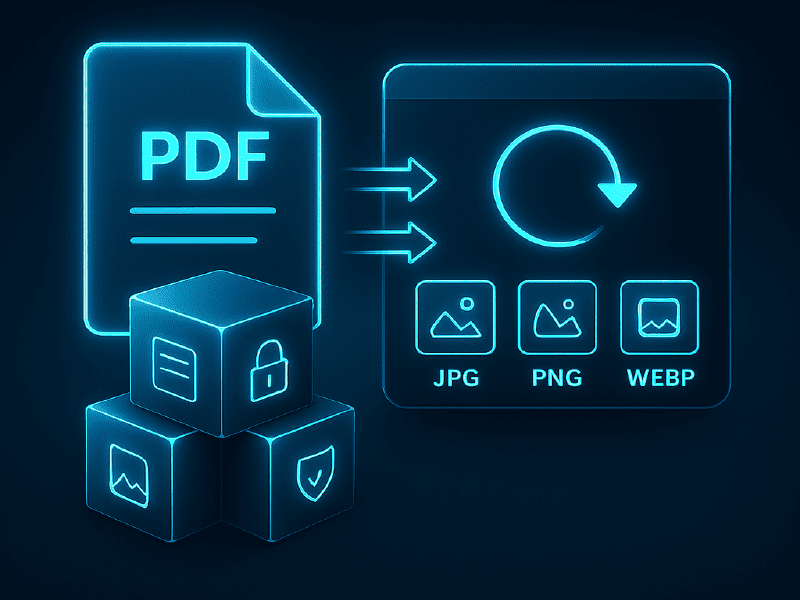
A PDF to Image Converter online is an essential utility for users who need flexibility, compatibility, and visual clarity when working with documents. Instead of sharing bulky PDF files that may not preview properly across platforms, converting PDF pages into image formats like JPG, PNG, or WebP makes content easier to view, embed, and distribute. This approach is especially valuable for designers, marketers, educators, and businesses that rely on visuals rather than document readers.
Modern online tools, such as the PDF to Image Converter by UtilifyZone, are designed to work directly in the browser without requiring software installation. This makes the conversion process fast, secure, and accessible on any device. By supporting multiple image formats and preserving layout accuracy, a reliable PDF to image converter ensures users never lose formatting, resolution, or clarity during conversion. As digital workflows increasingly favor visual content, converting PDF pages to images has become a practical and widely adopted solution.
What Is a PDF to Image Converter and How Does It Work?
A PDF to Image Converter is an online tool that transforms each page of a PDF document into an image file. Instead of treating a PDF as a single document, the converter processes it page by page and outputs image formats such as JPG, PNG, or WebP. This allows users to work with individual pages visually, making them easier to share, upload, or edit.
The process typically involves uploading a PDF file, selecting the desired image format, and letting the tool render each page as an image. Advanced converters use optimized rendering engines to ensure that fonts, colors, and layouts remain accurate. Tools like UtilifyZone’s PDF to Image Converter handle this entirely online, eliminating the need for desktop software. This makes the tool especially useful for users who want quick results without technical complexity. The result is a clean, high-quality image that reflects the original PDF page precisely.
Supported Output Formats: JPG, PNG, and WebP Explained
Choosing the right image format is an important step when converting PDF pages. JPG is widely used due to its smaller file size and broad compatibility. It works well for sharing documents via email, websites, or social media where fast loading matters. PNG, on the other hand, preserves higher quality and supports transparency, making it suitable for graphics, screenshots, and design-focused content.
WebP is a modern image format that offers excellent compression without sacrificing quality. It is particularly useful for websites aiming to improve page speed and performance. A good PDF to Image Converter online allows users to select the format based on their specific needs. UtilifyZone supports multiple output formats, ensuring flexibility for different workflows. Understanding these formats helps users optimize images for performance, quality, and compatibility across platforms.
Why Convert PDF Pages to Images Instead of Sharing PDFs?
Sharing PDFs can sometimes create friction. Not all devices preview PDFs correctly, and some platforms restrict document uploads. Converting PDF pages to images removes these barriers. Images are universally supported and load instantly on almost all devices, browsers, and apps. This makes them ideal for presentations, blog posts, online courses, and marketing materials.
Images also provide better control over visual presentation. Users can crop, annotate, or embed them directly into websites and social media posts. For businesses and content creators, this improves engagement and accessibility. A PDF to Image Converter online simplifies this process by allowing quick conversion without compromising quality. When users need speed, compatibility, and visual clarity, converting PDFs to images becomes the smarter choice.
How to Use the PDF to Image Converter on UtilifyZone
Using the PDF to Image Converter on UtilifyZone is designed to be simple and beginner-friendly. Users start by uploading their PDF file directly into the tool interface. Once uploaded, they can choose their preferred output format, such as JPG, PNG, or WebP. The tool then processes the document and converts each page into a separate image file.
After conversion, users can download the images instantly without creating an account or installing software. This streamlined workflow saves time and reduces technical hurdles. The tool works smoothly across desktops, tablets, and mobile devices, making it accessible anywhere. For users who regularly work with digital documents, UtilifyZone’s converter offers a reliable and efficient solution.
PDF to Image Converter Tool – https://utilifyzone.com/pdf-to-image-converter/
Bulk Image Converter – https://utilifyzone.com/bulk-image-converter/
Security, Privacy, and File Handling Best Practices
Security is a major concern when uploading documents online. A trustworthy PDF to Image Converter online prioritizes user privacy by processing files securely and avoiding unnecessary storage. UtilifyZone follows a privacy-first approach, ensuring that uploaded PDFs are handled only for conversion purposes.
Files are not shared, reused, or publicly accessible, which makes the tool suitable for professional and business use. This is particularly important when dealing with confidential reports, educational materials, or internal documentation. By choosing a secure converter, users can confidently transform PDF pages into images without worrying about data exposure. This commitment to privacy builds trust and supports long-term usability.
Practical Use Cases Across Industries and Professions
PDF to image conversion is useful across many industries. Educators convert lecture notes into images for presentations and learning platforms. Marketers use images extracted from PDFs for campaigns and social media posts. Designers convert PDF layouts into images for quick previews or client reviews.
Businesses often rely on images for documentation, training materials, and internal communication. Even developers benefit by embedding image-based documentation directly into websites. A flexible PDF to Image Converter online supports all these use cases by offering fast, high-quality conversions. UtilifyZone’s tool adapts easily to different professional needs, making it a practical solution for everyday workflows.
CSS Box Shadow Generator – https://utilifyzone.com/css-box-shadow-generator/
Best CSS Gradient Generator – https://utilifyzone.com/css-gradient-generator/
Why UtilifyZone Is a Smart Choice for PDF to Image Conversion
UtilifyZone focuses on simplicity, performance, and user trust. The platform offers browser-based tools that work instantly without sign-ups or technical barriers. Its PDF to Image Converter delivers accurate results while keeping the interface clean and easy to use.
Beyond conversion, UtilifyZone provides a growing suite of utilities designed to support designers, developers, and content creators. By integrating multiple tools under one platform, users can complete tasks efficiently without switching services. This commitment to usability and quality makes UtilifyZone a reliable choice for PDF to image conversion and beyond.
Common Mistakes to Avoid When Converting PDFs to Images
While a PDF to Image Converter online simplifies document handling, users often make avoidable mistakes that affect output quality or usability. One common issue is selecting the wrong image format. For example, choosing JPG for documents with text-heavy content or transparency can lead to compression artifacts and reduced clarity. In such cases, PNG or WebP may deliver better visual results.
Another frequent mistake is overlooking resolution settings. Low-resolution images may look acceptable on-screen but appear blurry when printed or zoomed. Users should always ensure the converter maintains the original PDF’s resolution. Additionally, uploading scanned PDFs without checking orientation or alignment can result in rotated or cropped images. Tools like UtilifyZone’s PDF to Image Converter are optimized to handle these scenarios, but users should still preview outputs before final use. Avoiding these mistakes ensures professional-quality image results every time.
PDF to Image Conversion vs Screenshotting: What’s Better?
Some users rely on screenshots instead of a proper PDF to Image Converter, but this approach has significant limitations. Screenshots often reduce image quality, capture unnecessary UI elements, and fail to preserve exact dimensions. They also require manual effort for each page, which becomes inefficient for multi-page documents.
In contrast, converting PDF pages to images using a dedicated online tool ensures consistency, accuracy, and speed. Each page is rendered precisely as an image without distortion or loss of layout. This is especially important for business documents, educational materials, and design assets. A reliable converter like UtilifyZone processes all pages automatically and outputs clean image files ready for use. Compared to screenshots, PDF to image conversion is the smarter, more professional solution for scalable workflows.
FAQ
What is a PDF to Image Converter?
A PDF to Image Converter is an online tool that converts PDF pages into image formats like JPG, PNG, or WebP for easier sharing and use.
How do I convert a PDF to JPG or PNG online?
Users can upload a PDF, select an image format, and instantly download converted images using an online PDF to Image Converter.
Is it safe to use an online PDF to Image Converter?
Yes, trusted tools like UtilifyZone process files securely and do not store or share uploaded documents.
Which image format is best when converting PDFs?
JPG works well for sharing, PNG is ideal for quality and transparency, and WebP is best for web performance.
Can I convert multi-page PDFs into images at once?
Yes, a PDF to Image Converter online automatically converts each PDF page into a separate image file.
Do I need to install software to convert PDFs to images?
No, browser-based tools like UtilifyZone work online without downloads or installations.